What Is AI Musician? Choose the Right Tool for Your Idea
 AI Musician Team
A practical guide to the seven AI Musician tools, their real outputs, and a sensible workflow from first idea to reviewed download.

AI Musician brings seven music tools into one workspace, but they solve different problems. A written idea needs generation; a recording with an unwanted vocal needs separation.
This guide explains what each tool takes in, what you can actually take away, and how to plan a small creative project without assuming a guaranteed sound, processing time or publication outcome.
Start with the material you already have
| Your starting point | Open this tool | Actual result |
|---|---|---|
| A description or your own lyrics | Music Generator | Generated songs or instrumental audio |
| A theme, character or story | Lyrics Generator | Editable lyric drafts, not a recording |
| Notes and an arrangement to edit | MIDI Studio | An editable MIDI arrangement; MIDI or supported rendered audio export |
| A recording to reinterpret | Reimagine Music | Separate generated audio using Cover or Reference |
| A photo or illustration | Image Soundtrack | Instrumental audio inspired by the image |
| A mix you want in two parts | Vocal Remover | Vocal and instrumental MP3 files |
| A mix you want to study by instrument | Stem Splitter | Four MP3 parts: vocals, drums, bass and other instruments |
Three ways to create new material
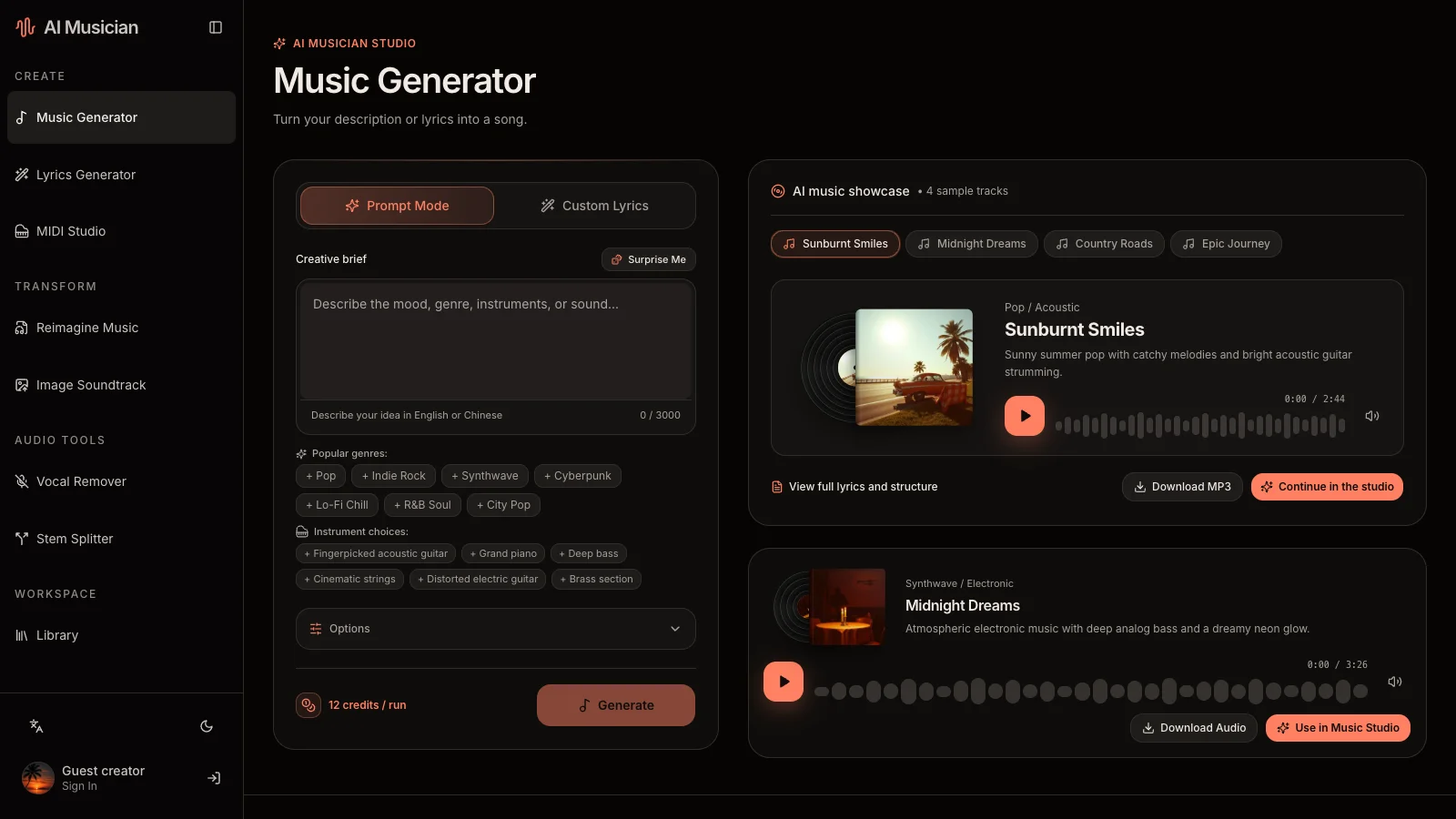
Music Generator starts from words. Describe the role of the piece, its mood and a few compatible instruments. Choose vocals or instrumental music. Custom lyrics belong in the lyrics field, with a separate musical style; pasting a whole song into the style description makes the brief harder to evaluate. A requested tempo or length is a direction, not an exact performance specification.
Lyrics Generator starts from a story. Explain who is speaking, what happened and how the feeling changes. Review the verses and chorus before copying the draft into a music project. A catchy sentence can still be difficult to sing: read it aloud, shorten crowded lines and remove details that do not suit the narrator.
Image Soundtrack starts from a visual reference. Upload one JPG, PNG, WebP or GIF, up to 10 MB, and add a musical direction when needed. A quiet street photograph might suggest soft piano; you can clarify that the track must leave room for narration. The result is audio. Assemble the picture, soundtrack and any transitions in your own video editor.
Rework a recording or edit the notes
Reimagine Music offers two different intentions. Cover reinterprets a song in another style; Reference uses audio to guide a new composition. Neither is a promise to preserve a singer’s identity or duplicate a performance. Uploads are limited to 50 MB; Cover supports sources up to eight minutes, while Reference accepts six seconds to thirty minutes. Check the tool before uploading, because its displayed requirements are the operational reference.
MIDI Studio serves a different need: direct arrangement editing. Start a project or import MIDI, then change notes, tracks, tempo and instruments. Export MIDI when you want to continue in a sequencer; render supported audio with the loaded instruments when you want to listen outside the editor. Importing an MP3 is not the same as importing editable MIDI notes.
Separate a mix with a clear listening question
Choose Vocal Remover for singing practice with an instrumental, or Stem Splitter to inspect the drums and bass separately. Both currently accept audio up to 50 MB and twenty minutes. Download the available MP3 outputs individually; these workflows do not promise a ZIP package or selectable quality tiers.
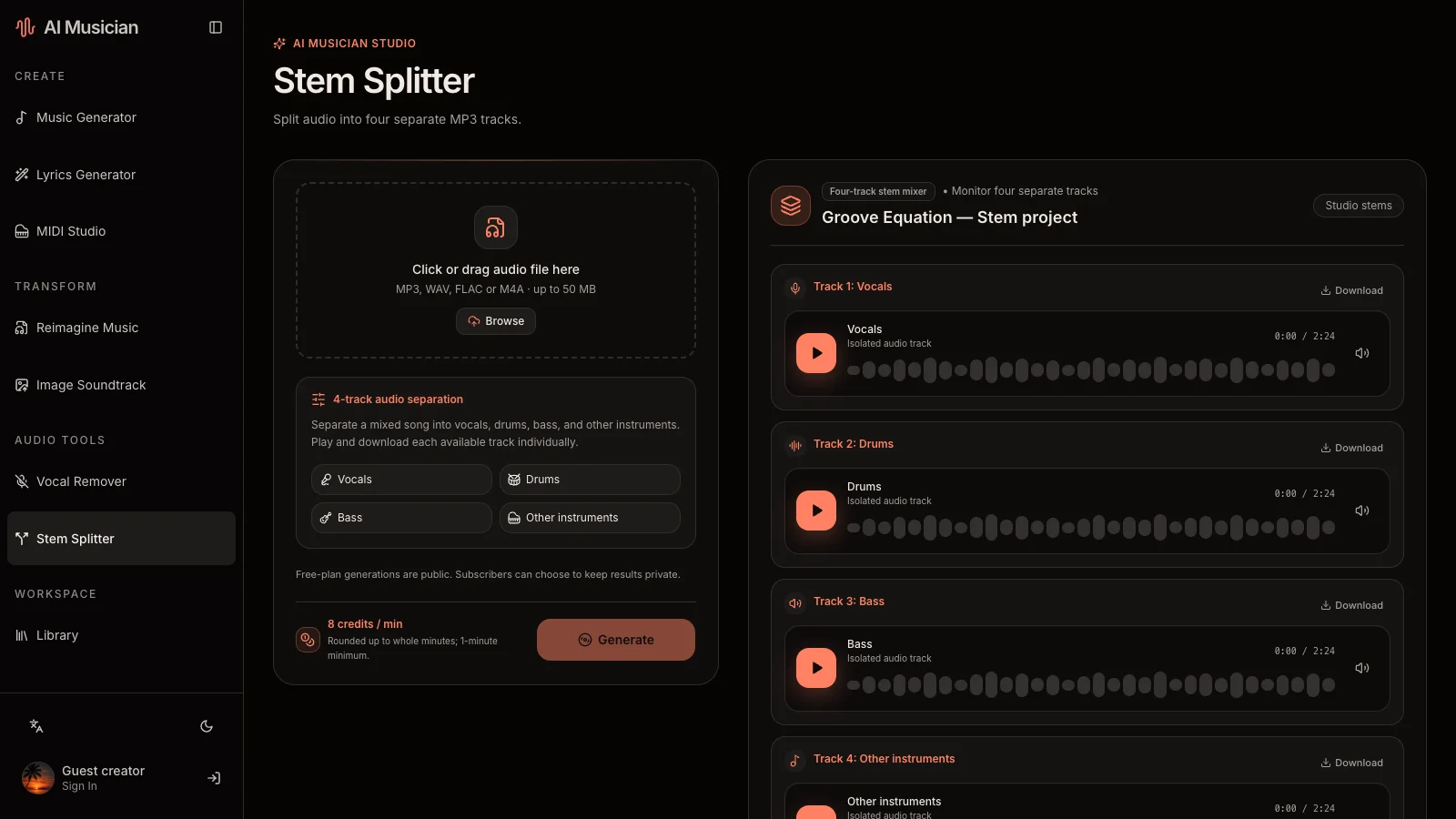
Separated parts are estimates from the finished mix, not recovered studio masters. Listen for cymbal smearing, vocal bleed and missing transients. If your goal is karaoke, assess the instrumental with your voice over it; a soloed artifact may matter differently in context.
A practical project: a narrated café video
Suppose you need a restrained background for a short café walkthrough. Start with Music Generator and request instrumental music with gentle guitar, soft percussion and space for speech. Compare the available candidates against the narration at the same playback volume. If the rhythm distracts, revise that one instruction before changing the genre as well.
A photograph can supply an alternate starting point through Image Soundtrack. Use MIDI Studio only if you also want to build or edit a note-based arrangement. You do not need to run a project through all seven tools: select the next tool because it solves a specific problem.
Check visibility, cost and storage before submitting
- Explore the controls first, then sign in to start generation. Read the displayed credit cost; processing time and available outputs vary by task.
- Free-plan generated results are public. Eligible subscribers can choose private results before submission. Buying a one-time credit pack is not the same as having a subscription that enables privacy.
- A public task does not automatically enter Showcase. Successful, eligible public work must pass administrator review before it is featured. Showcase covers the six Studio task types; MIDI editing is a separate workflow.
- Keep downloaded audio, lyrics and MIDI/project backups. Your Library helps you revisit tasks; it does not make temporary source links permanent storage.
Questions worth asking
Does a generated download automatically grant commercial rights?
A download alone is not a blanket license statement. Review the applicable license information, your source permissions and your intended use. Use material you own or are permitted to process.
Which tool should a beginner open first?
Choose Music Generator for an audible first draft, or Lyrics Generator when the words are the main unresolved question. Follow the first-track walkthrough for a complete example.
Where are the detailed requirements?
Consult the tool documentation and check the interface before creating.